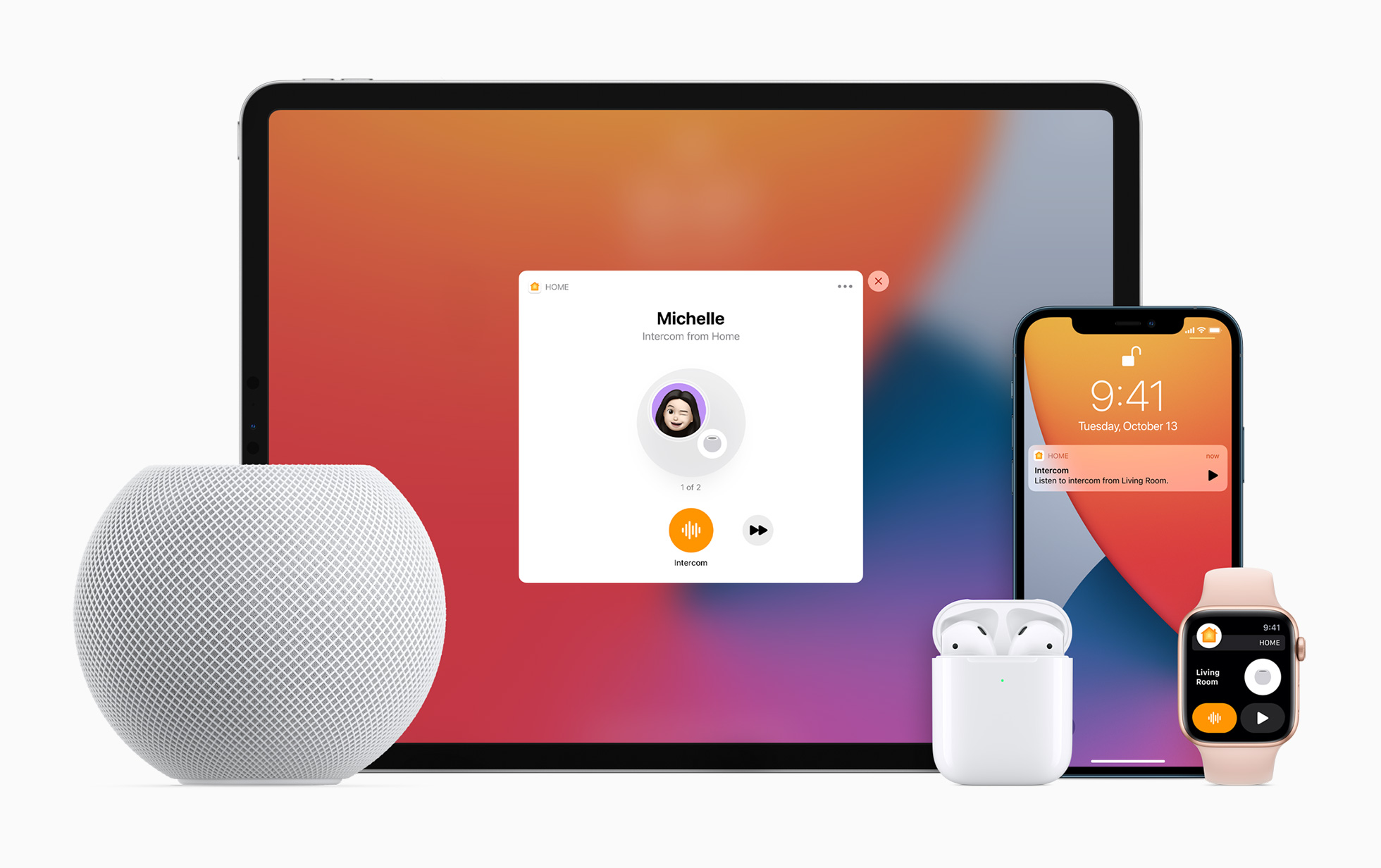
Intercom works with the HomePod, HomePod mini, iPhone, iPad, Apple Watch, AirPods, and even CarPlay, so you can dictate a voice message on any of your devices that you can have delivered to a single person in the family or all family members.
How to Set Up Intercom
After updating to HomePod software 14.1 and iOS 14.2, which is still in beta testing at this time, Intercom can be set up in the Home app. Intercom works if you have a HomePod or another compatible device, and there is no dedicated interface on the iPhone for using Intercom outside of the Home app.
- Install HomePod 14.1 software.
- Open up the Home app.
- Tap on the little house icon in the upper left corner.
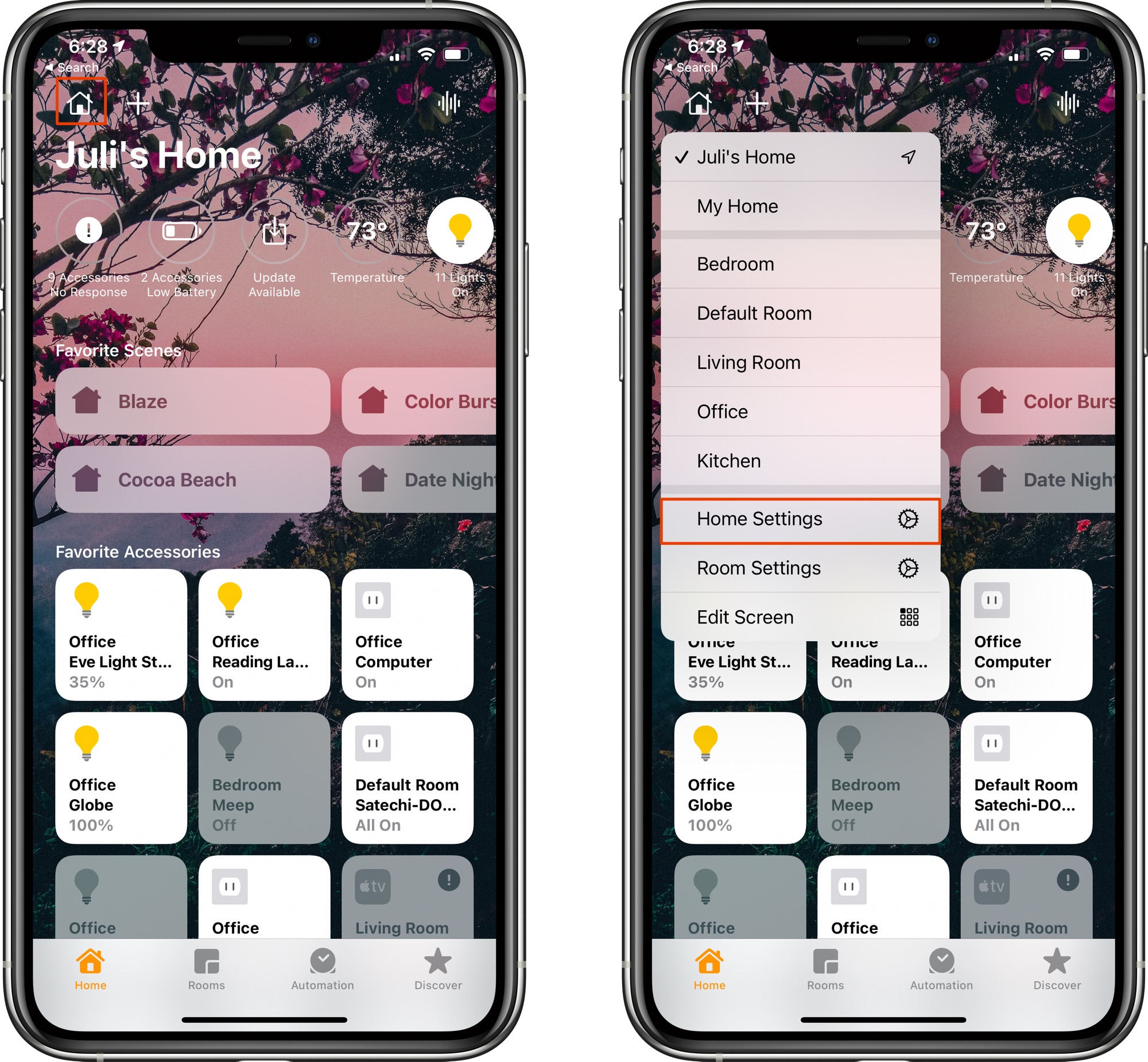
- Tap on "Home Settings."
- Scroll down to "Intercom" and tap it.
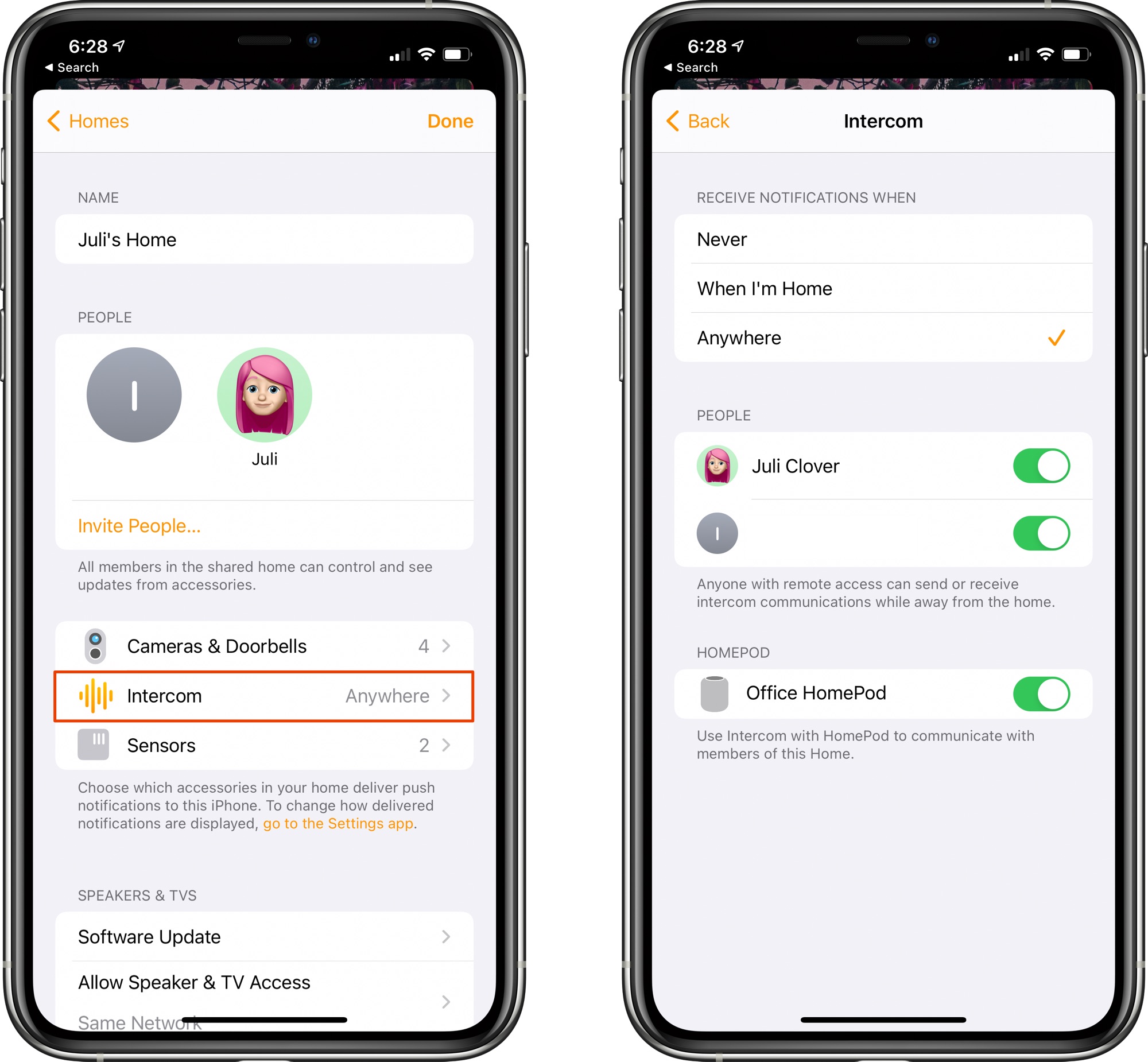
- Adjust your notification settings and select the people in the home who are able to use the Intercom feature.
Those who have remote access to your Home app can send or receive Intercom messages even when away from home, with those messages displaying as audio notifications on iPhone and Apple Watch.
Note that anyone who wants to be able to use Intercom will need to be added as a person with access to the home. This can be done by entering the Home Settings screen and tapping on "Invite People."
Intercom Requirements
Intercom works with the HomePod after installing the HomePod 14.1 update, and it is functional on the iPhone and iPad after installing the iOS 14.2/iPadOS 14.2. On Apple Watch, it appears to work with watchOS 7.1 and later.
There may be some Intercom features reserved for iOS 14.2 and HomePod 14.2 as Intercom does not function seamlessly yet, so for the best possible Intercom results, make sure all of your devices have the most recent operating system updates that are available.
How to Use Intercom to Send a Message to a HomePod
Intercom messages can be sent to the HomePods throughout a home using Siri on iPhone, iPad, Apple Watch, another HomePod, and more. To send an Intercom message, just activate Siri on your iPhone, iPad, Apple Watch, CarPlay, or AirPods and then say "Intercom" and your message.
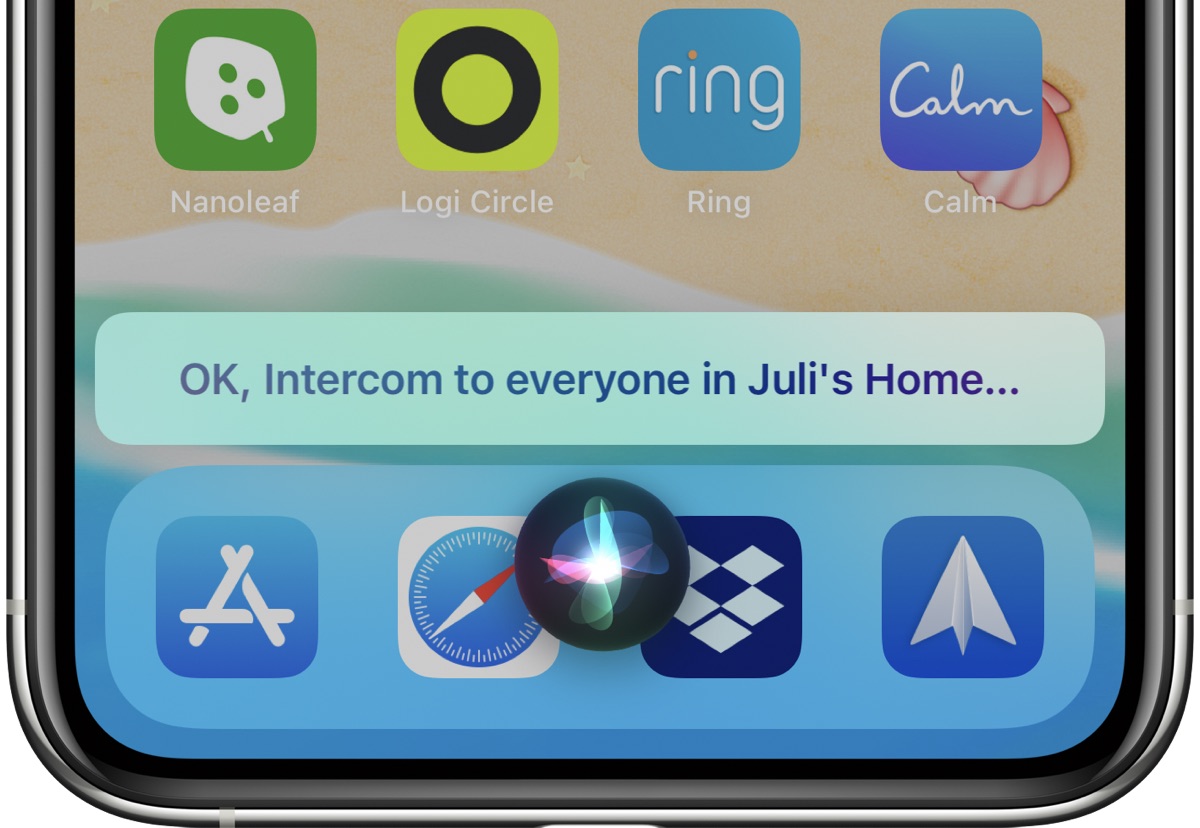
So if you wanted to tell everyone that dinner is ready, just say "Intercom, dinner is ready" and the message "Dinner is ready" will be relayed to all of the HomePods in the Home.
Other commands like "Hey Siri, tell everyone dinner is ready" also work as an alternative phrase for communicating through Intercom.
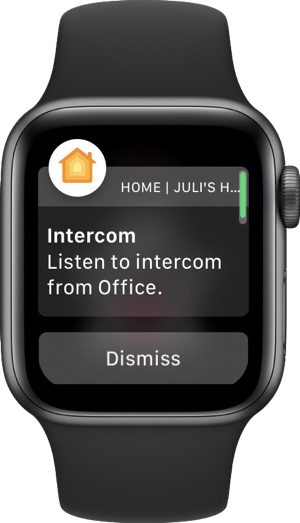
In the Home app on iPhone and iPad, there's also an option to tap on the small waveform in the upper right corner to record a message that's then sent to Intercom devices in the home.
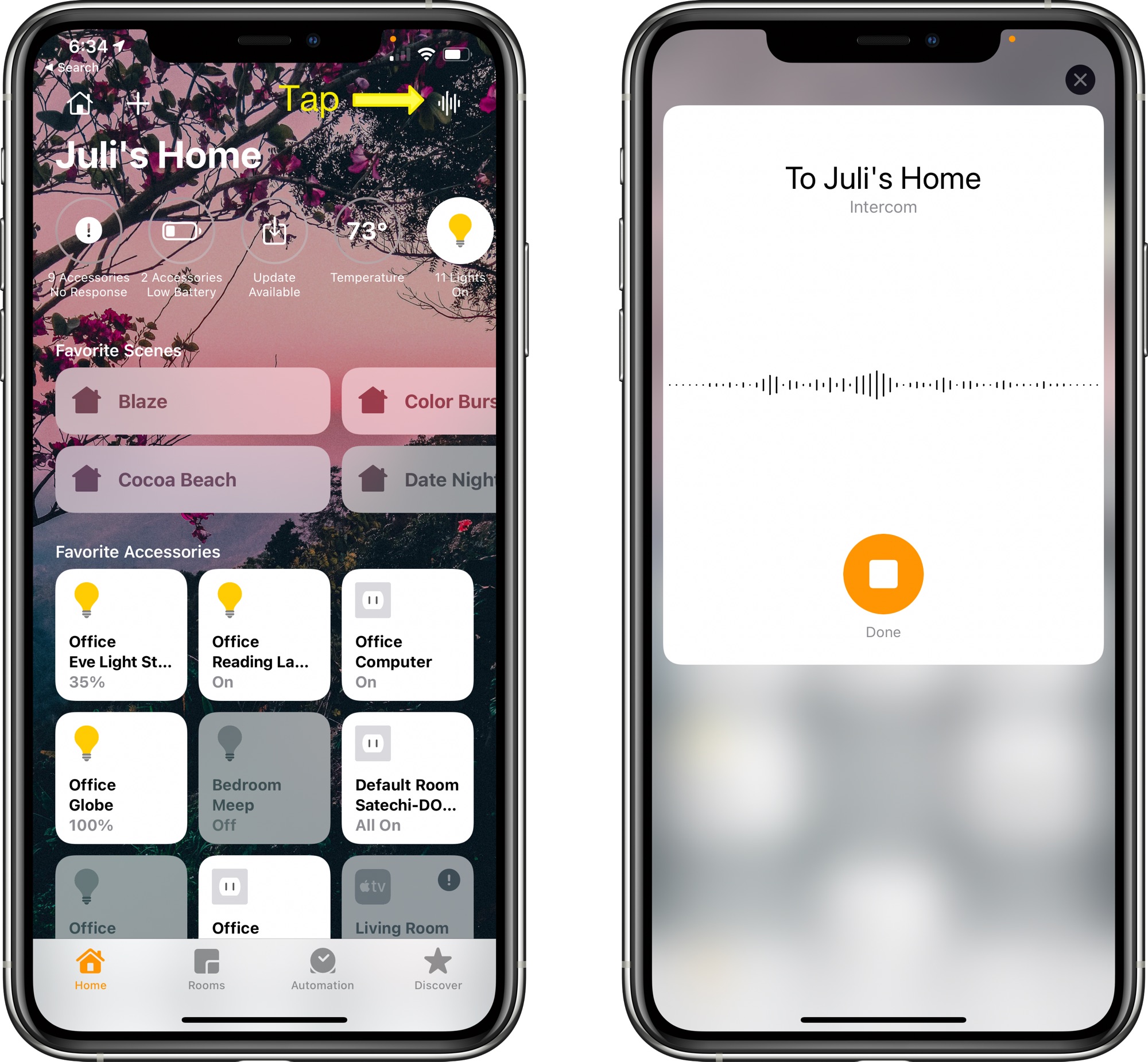
How to Use Intercom to Send a Message From a HomePod to Another Device
You can use the HomePod to send a message to other HomePods in the home or to the devices that belong to members of the family.
It's as simple as activating Siri, saying "Intercom" and then the message, with the message able to be sent to every person in the family regardless of who's at home. It will play on HomePod speakers in the house as well as on individual iPhones, iPads, and Apple Watches.
How to Send a Message to a Specific Room
If you have HomePods in separate rooms, you can direct a message to that room by activating Siri and then saying "Intercom [room name] [message]."
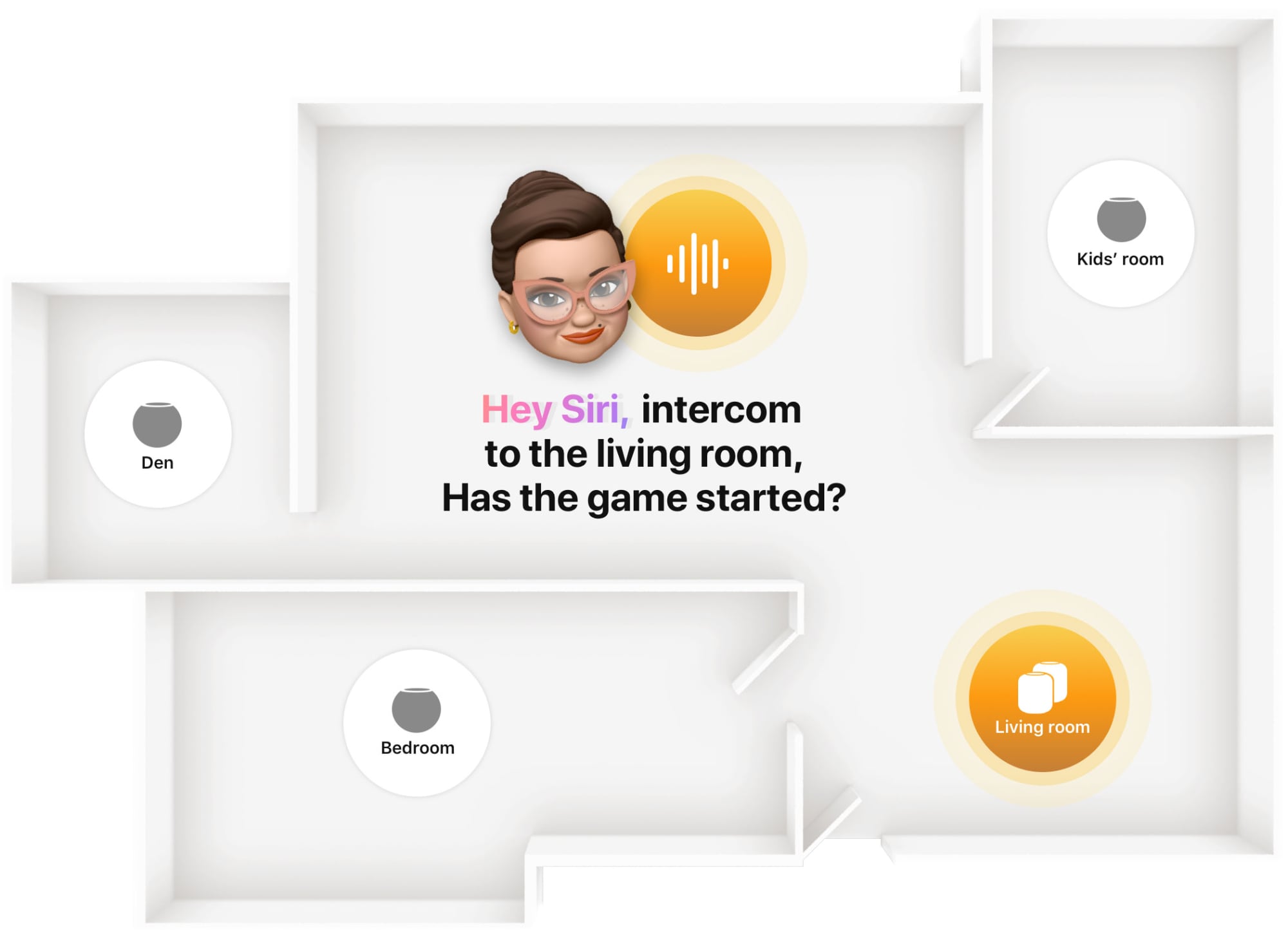
So for example if you wanted to tell everyone in the living room that dinner is ready, you would say "Hey Siri, intercom living room dinner is ready."
Note that to use the room command, HomePods need to be correctly assigned to a room in the Home app. Assigning or changing a room can be done by following these steps:
- Open the Home app.
- Select the HomePod or HomePod mini from the device list.
- Long press on the HomePod icon.
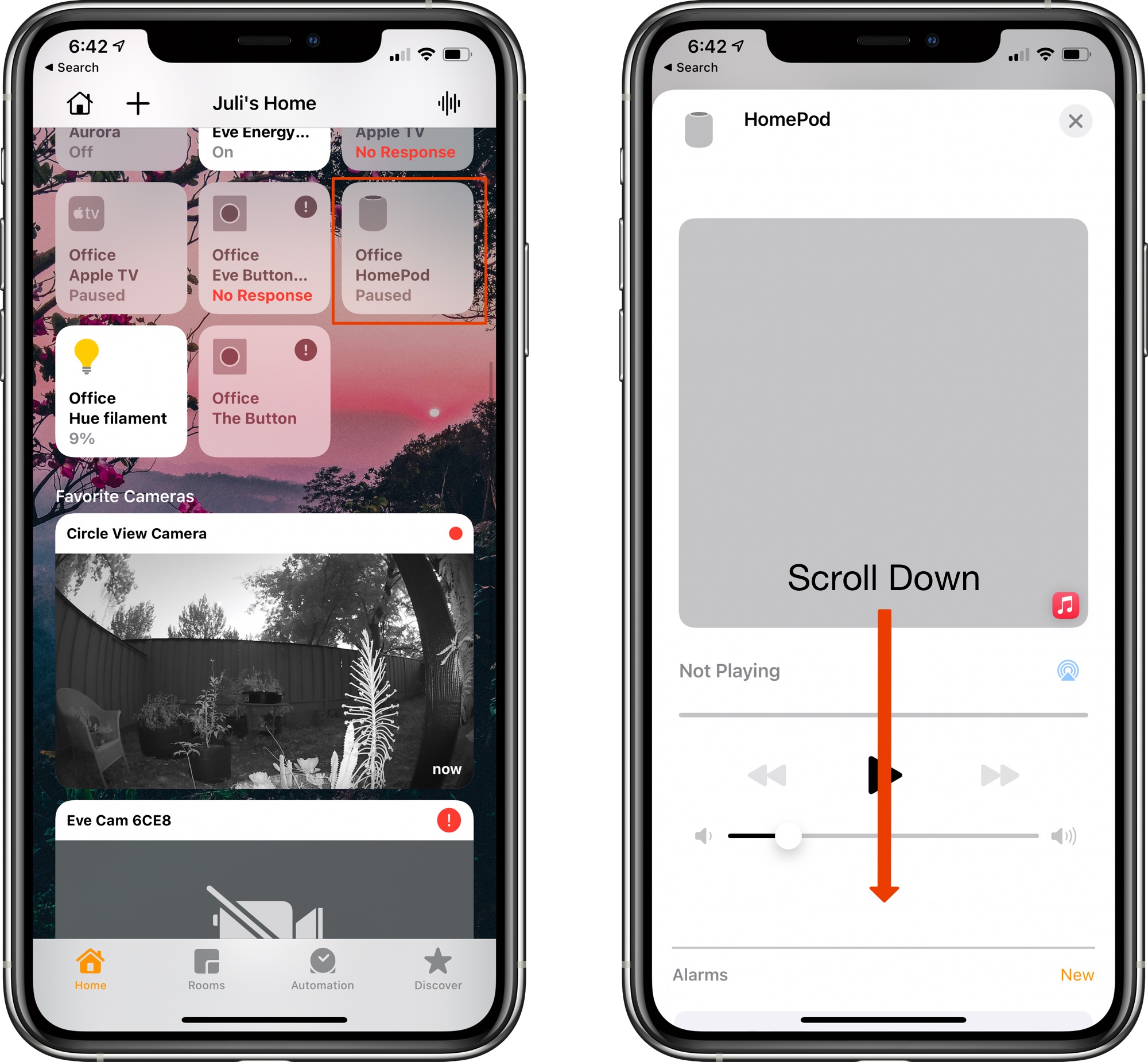
- Tap on the gear icon at the bottom of the interface that pops up or scroll down forcefully.
- Tap on "Room."

- Select a room from the list of available rooms or tap "Create New."
- When done, close the interface by tapping the "X" at the top of the window.
How to Reply to an Intercom Message
If you receive an Intercom message in one room of the house and want to send a message back, you can activate Siri and then say "reply" along with your message.
So if you received an Intercom message that said "Dinner's ready," you can say "Hey Siri reply I'm on my way" to send a message right back.
Devices Compatible With Intercom
You can use iPhones, iPads, Apple Watches, and AirPods to send Intercom messages to the members of your household, and you can even send messages through CarPlay if you're driving.
Guide Feedback
Have questions about Intercom or want to offer feedback on this guide? Send us an email here.
Related Roundups: HomePod, HomePod mini
Buyer's Guide: HomePod (Caution), HomePod Mini (Caution)
This article, "How to Use Apple's New Intercom Feature" first appeared on MacRumors.com
Discuss this article in our forums


from MacRumors: Mac News and Rumors - All Stories https://ift.tt/3mofP2d




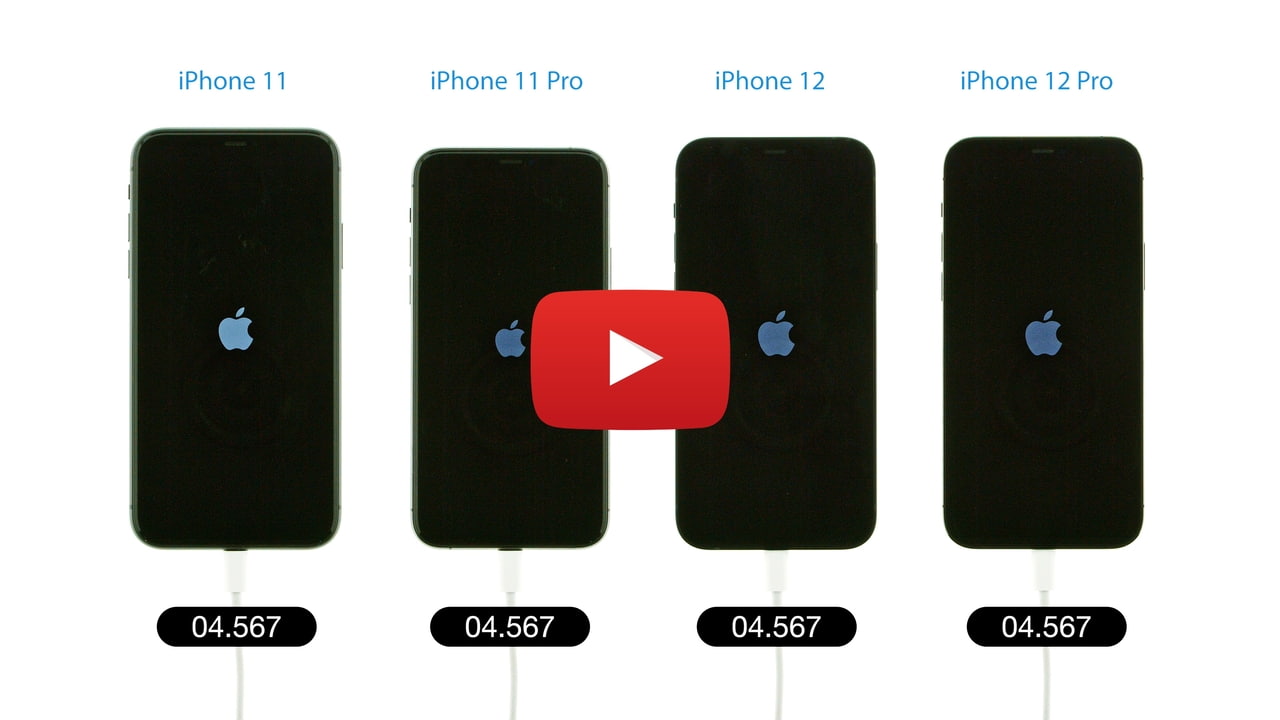

 Check out this boot speed test comparing the new iPhone 12 Pro and iPhone 12 with the iPhone 11 Pro and iPhone 11.